
clavirio
Learn touch typing without leaving the terminal.
A free, open-source typing tutor for the terminal. Progressive lessons, practice modes, real-time stats, and a virtual keyboard with finger hints — for QWERTY, Dvorak, and Colemak.
Methodology
Research on typing skill suggests that skilled typing relies more on implicit procedural control than on explicit knowledge of key locations. The paper also suggests that the keyboard is represented in terms of its row-and-column structure, not as a memorized list of individual letters.
Clavirio follows that idea by teaching the keyboard row by row with the same 7-lesson progression for each row:
index pair → middle pair → ring pair → pinky pair → reach pair → full row → row + Shift
This is meant to reduce reliance on explicit recall of key locations and build more automatic control within the keyboard’s row-and-column structure.
Each lesson introduces only 2 new keys and uses only characters from earlier lessons. The same progression is used for QWERTY, Dvorak, and Colemak, so the lesson structure stays consistent across layouts.
Features
27 Progressive Lessons
A universal finger-pair system — 2 new keys per lesson, same physical positions across all 3 layouts. Each row follows index → middle → ring → pinky → reach → full row → row + Shift. Lessons 1–21 are layout-specific; 22–27 cover numbers and symbols.
Practice Modes
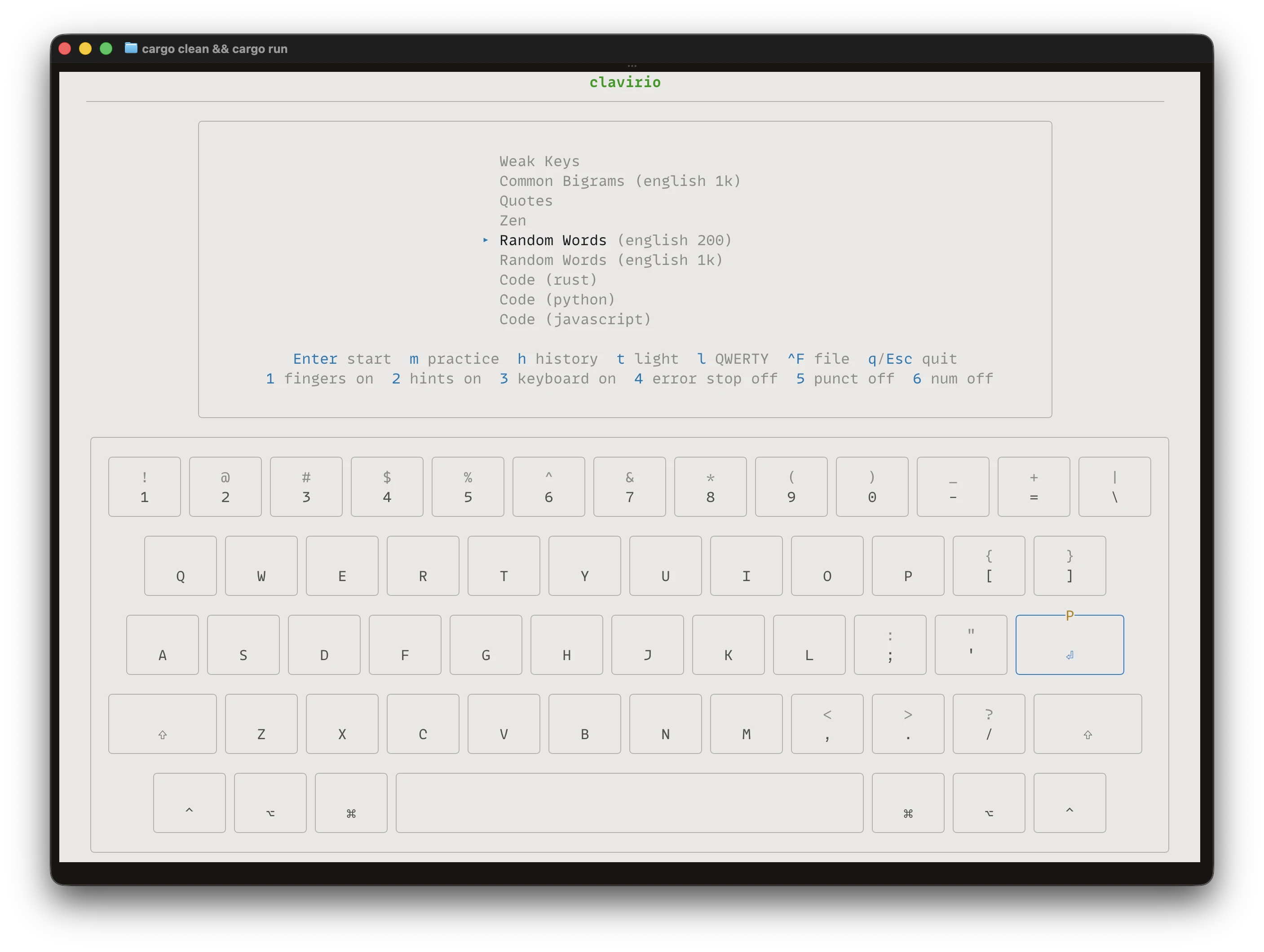
Random words (english 200/1k), code keywords (Rust, Python, JavaScript, Go, C/C++, Java, HTML/CSS), timed sessions, common bigrams, real quotes, weak-key drills, and Zen free-typing. Toggle punctuation and numbers injection with 5/6 in practice mode.
Live Stats
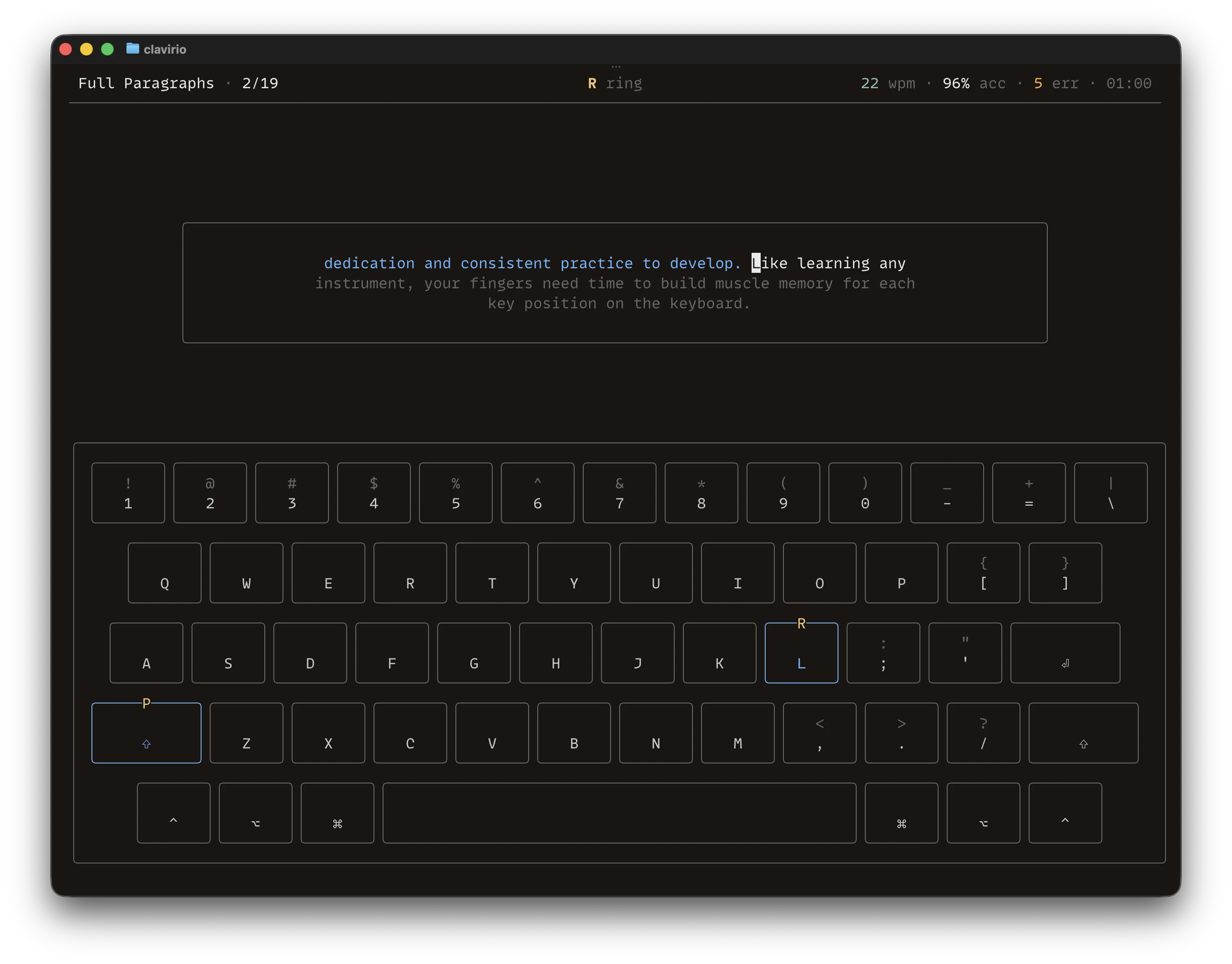
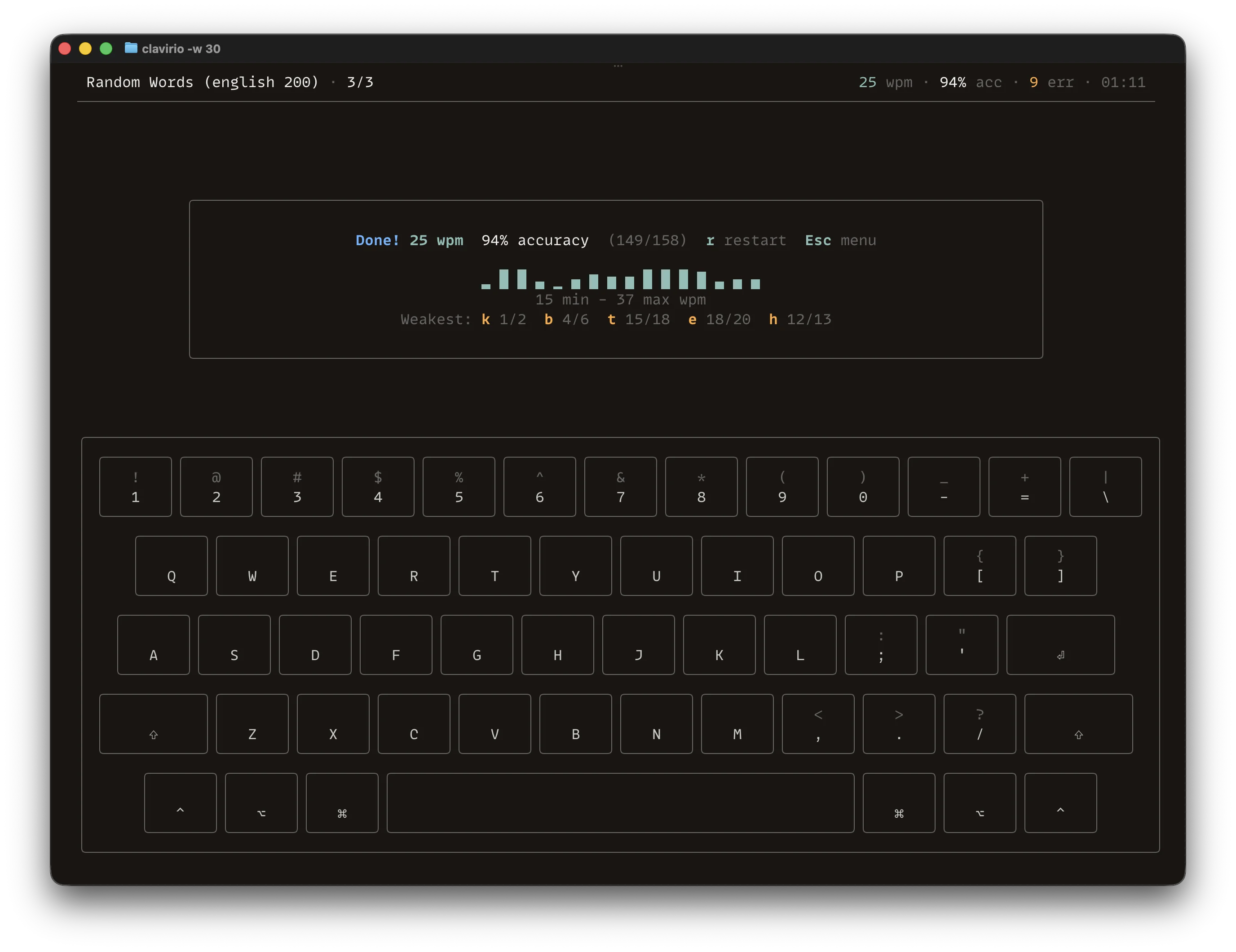
WPM, accuracy, elapsed time, keystroke counts, and line progress update as you type. The completion screen shows a WPM sparkline graph and your weakest keys.
Virtual Keyboard
An on-screen keyboard highlights the next expected key (including Shift) in real time. Finger hints help you learn proper hand placement. Supports QWERTY, Dvorak, and Colemak — switch layouts with a single keystroke. Adapts to macOS and PC modifier labels.
Error Feedback
Two modes: error stop off (default) lets you type past mistakes with backspace correction within the current word; error stop on blocks until corrected. Toggle with key 4.
Session History
Browse past sessions with per-lesson tracking and view averages. Results are saved automatically between sessions.
Display Settings
Toggle finger hints, key hints, the virtual keyboard, error stop, and dark/light theme from the main menu. Preferences including menu mode are saved automatically across sessions.
Custom Texts
Load any text file with Ctrl-F or pass it as a CLI argument. Practice typing with your own content — code, prose, anything.
Just Works
No accounts, no internet, no setup needed. A single binary — install it, run it, start typing. In-progress sessions are saved on exit.
27 Built-in Lessons
A universal finger-pair system: 2 new keys per lesson, same physical positions across all 3 layouts. Lessons 1–21 are layout-specific; 22–27 cover numbers and symbols.
Keyboard Controls
Navigate with Vim-style keys or arrows.
Cross-platform
Runs on macOS, Linux, and Windows. The virtual keyboard adapts its modifier labels to your platform.
Mac keyboard
Virtual keyboard shows ⌘ ⌥ ⌃ modifier labels
PC keyboard
Virtual keyboard shows Win, Alt, and Ctrl modifier labels
Install
clavirio is a single binary. Pick whichever way works for you:
Prebuilt binary
Download from GitHub Releases (macOS, Linux, Windows), then:
# macOS / Linux
tar xzf clavirio-*.tar.gz
sudo mv clavirio /usr/local/bin/

# Windows — extract the .zip,
# then add the folder to your PATH
macOS: On first run, macOS may block the binary. Go to System Settings → Privacy & Security and click Allow Anyway.
Then run clavirio in your terminal, or jump straight into a mode:
clavirio               # lessons menu
clavirio -w            # random words
clavirio -t 60         # timed 60s
clavirio -f mytext.txt # custom file
Session history and preferences are stored in ~/.clavirio/.